Slack Connector
Import selected Slack channels into a Mixedbread Store and ask source-grounded questions from Slack.
The Slack connector imports selected channel history, threads, and supported shared files into a Store. It keeps selected channels current as messages are posted, edited, or deleted.
Once Slack content is imported, workspace members can ask questions by
mentioning the Mixedbread app, sending it a direct message, or running
/mixedbread ask <question>. Answers include links to relevant Slack messages.
Before you begin
You need:
- a Mixedbread organization with access to Data sources;
- permission to install apps in the Slack workspace; and
- access to the channels you want to import.
OAuth is the recommended installation method. Use manual setup when your organization requires a customer-managed Slack app.
Connect with OAuth

Choose Slack
In the Mixedbread Platform, open Data sources, select Create, and choose Slack.
Keep OAuth selected
Select OAuth (recommended).
Choose the destination Store
Enter an optional Store name and review the Store configuration. Leave the
name blank to use slack-{your - workspace}.
Authorize Slack
Select Connect Slack, choose the workspace, review the requested permissions, and approve the installation.
Select channels
Back in Mixedbread, select the channels to synchronize. The Slack bot joins selected public channels so it can read new messages.
Saving the selection queues a historical import and enables updates for new messages. Use Sync now to re-check every selected channel.
Connect with a customer-managed Slack app
Open manual setup
Choose Slack, then select Manual setup. Mixedbread generates a deployment-specific Slack app manifest in JSON and YAML.
Create or choose the Slack app
For a new app, open Slack's app creation page, choose From an app manifest, select the workspace, and paste the manifest from Mixedbread. To reuse an app, select it in the Slack app dashboard and use the manifest as the configuration checklist. See Slack's app manifest guide for details.
Copy the signing secret
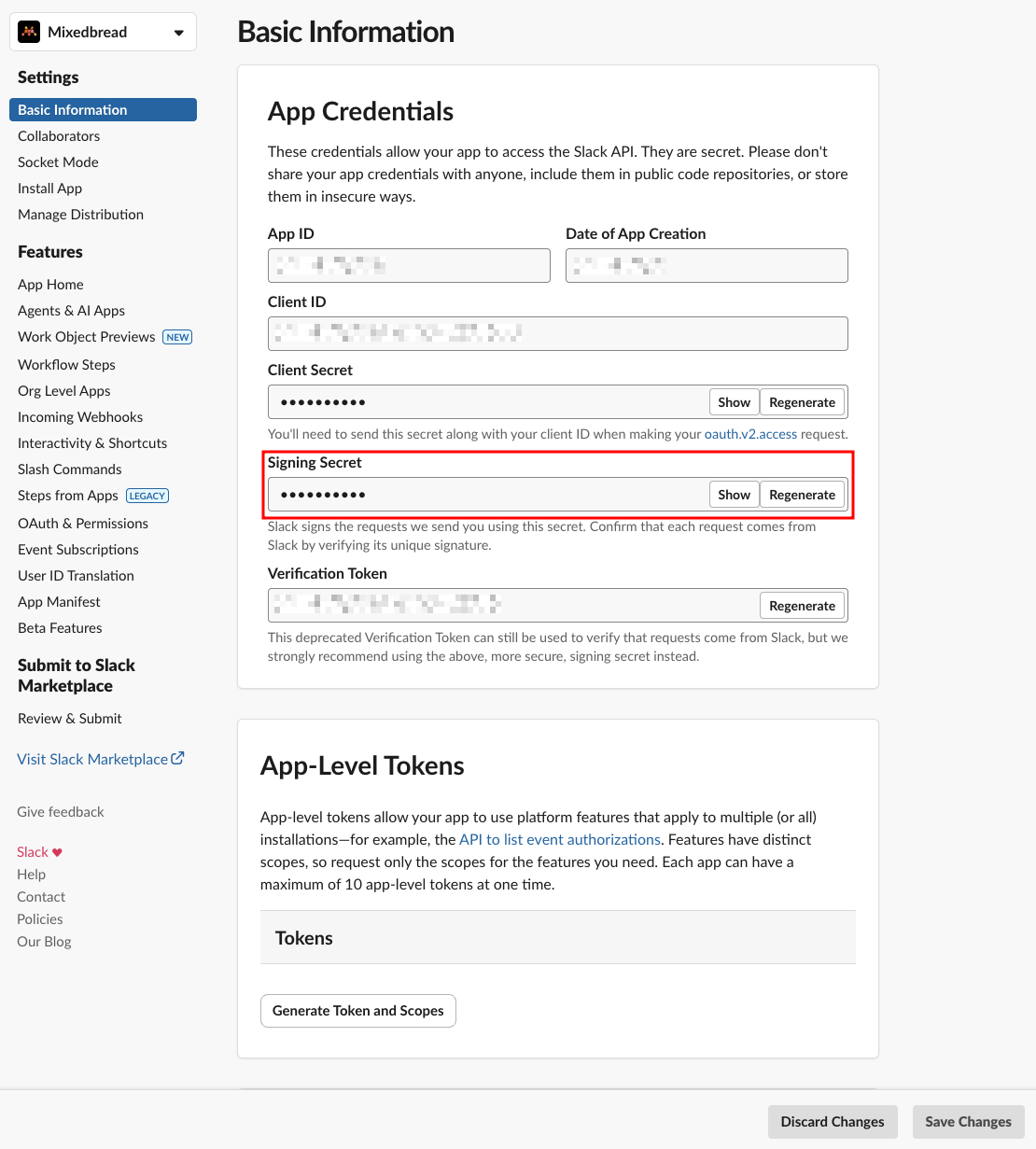
In the Slack app dashboard, select the app and open Basic Information. Under App Credentials, copy the Signing Secret into Mixedbread.
Install the app
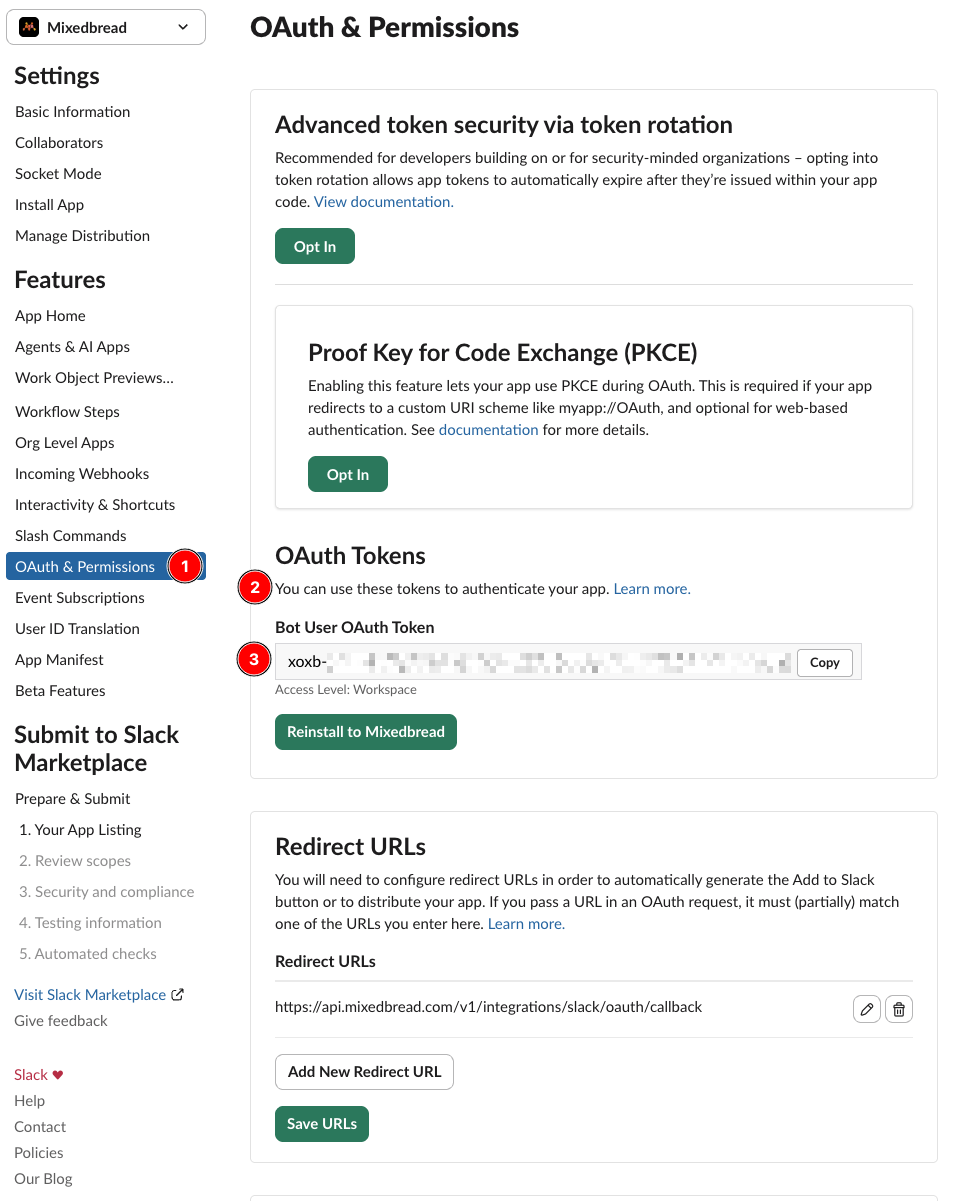
In the Slack app dashboard, open OAuth & Permissions, select Install to Workspace, and approve the installation.
Finish the connection
Choose an optional Store name and configuration, then select Connect Slack.
Select channels
Choose the channels to import. Saving the selection starts the historical import.
For a new app, keep the generated manifest unchanged. If you reuse an existing app, use the manifest as a checklist: preserve the app's other configuration, but add every generated scope and redirect URL under OAuth & Permissions. Under Event Subscriptions, use the generated request URL and add every generated event. Reinstall the app after adding scopes so Slack grants them to the workspace.
Ask questions in Slack
After at least one selected channel has finished importing, workspace members can use any of these entry points:
- mention
@Mixedbreadfollowed by a question; - send the Mixedbread app a direct message; or
- run
/mixedbread ask <question>in a channel.
Mixedbread searches the Slack Store, returns a generated answer, and links back to source messages when available. Answers are filtered using the requester's workspace identity and the source content's access controls.
Mixedbread uses generative AI to create answers. Responses may be inaccurate or incomplete. Verify important information using the linked Slack sources.
Manage the connector
Open the Slack data source to:
- search, filter, and sort available channels;
- synchronize or exclude channels;
- refresh the channel catalog;
- run a manual sync;
- retry channel or item-level failures; or
- disconnect the workspace.
Excluding a channel stops future imports. Disconnecting removes the saved Slack credentials and stops event delivery. Previously imported Store files remain available until you delete them.
Troubleshooting
A channel is missing
Select Refresh channels. If the channel still does not appear, verify that the connected app can access it and that the channel is not archived.
A channel is not receiving updates
Confirm that it is marked Syncing and that the Mixedbread app is a channel member. Run Sync now to re-check the channel.
An import completed with warnings
Open the warning details to view the affected Slack items. Use Retry for recoverable failures.