Salesforce Connector
Import selected Salesforce object records into a Mixedbread Store with manual or scheduled synchronization.
The Salesforce connector imports records from selected object types into a Store. It uses Salesforce's Client Credentials Flow and accesses data as a configured Run As user.
Before you begin
You need:
- access to Salesforce Setup and External Client App Manager;
- permission to create and configure an External Client App;
- a Salesforce user whose record access matches the data you want to import; and
- a Mixedbread organization with access to Data sources.
Create the Salesforce External Client App
Open External Client App Manager
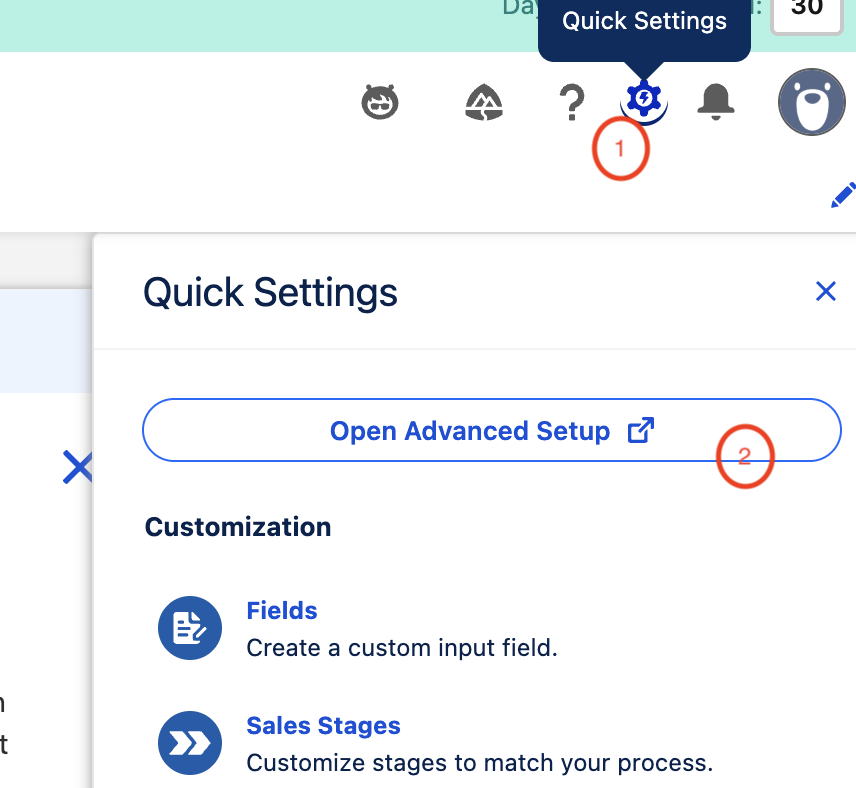
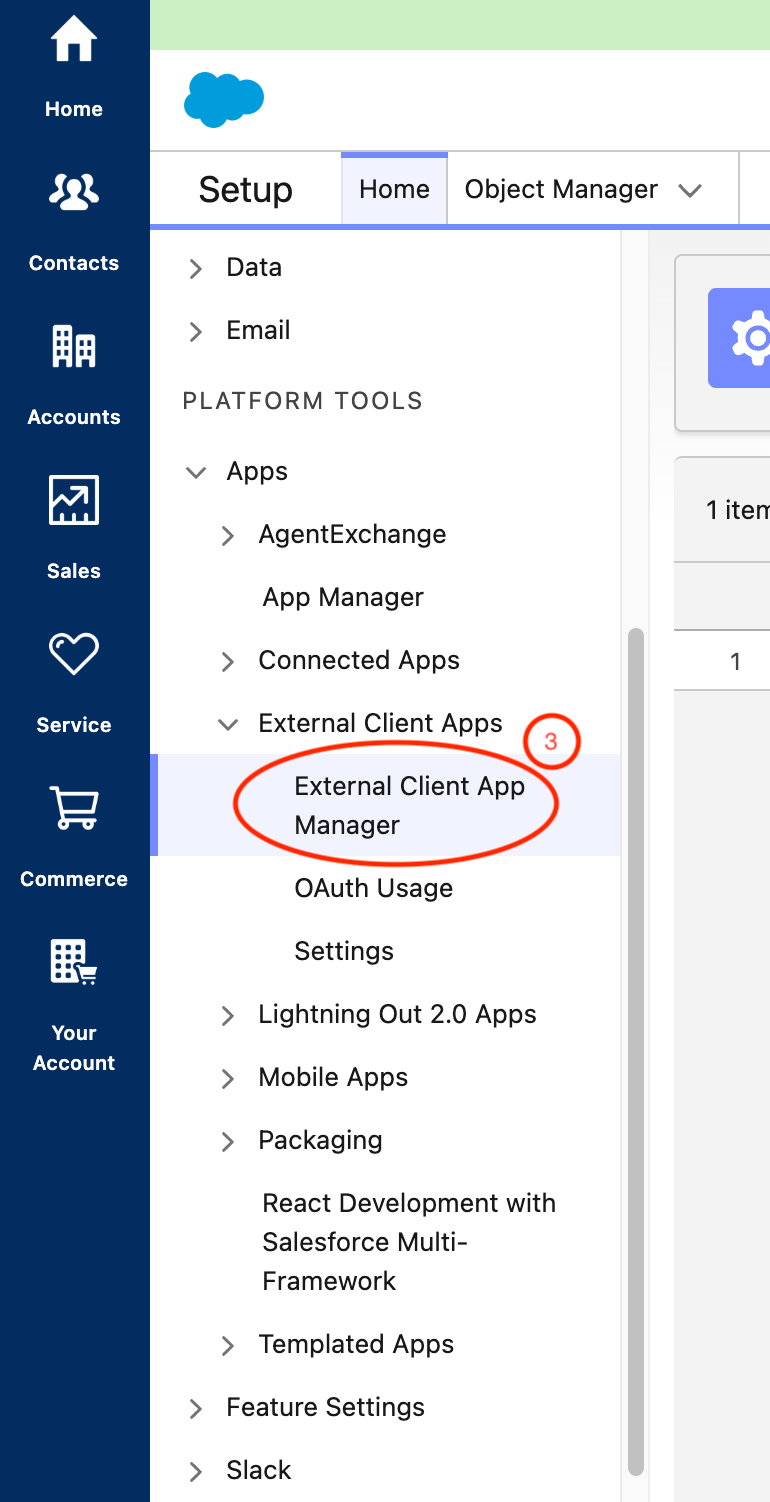
In Salesforce, open Setup. From Quick Settings, select Open Advanced Setup, then open External Client App Manager.
Create an External Client App
Create an app, provide its name and contact email, and continue to the API settings.
Enable OAuth settings
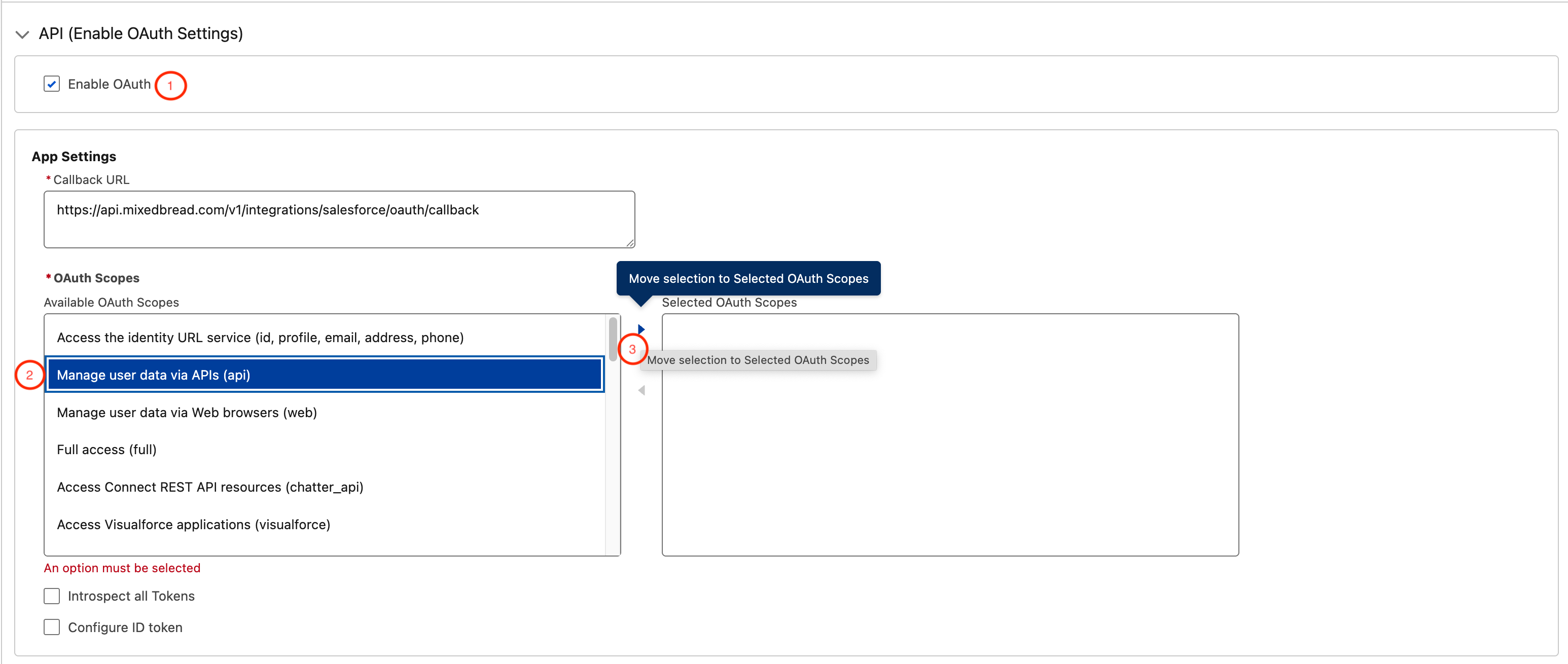
Under API, enable OAuth Settings and enter this callback URL:
https://api.mixedbread.com/v1/integrations/salesforce/oauth/callback
Add the Manage user data via APIs (api) scope.
Enable Client Credentials Flow
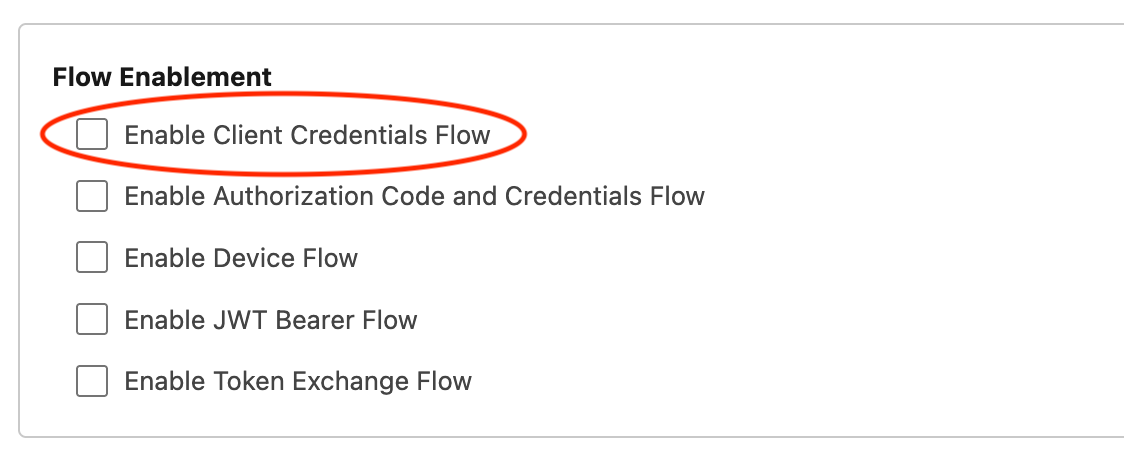
Under Flow Enablement, turn on Client Credentials Flow, then create the app.
Set the Run As user
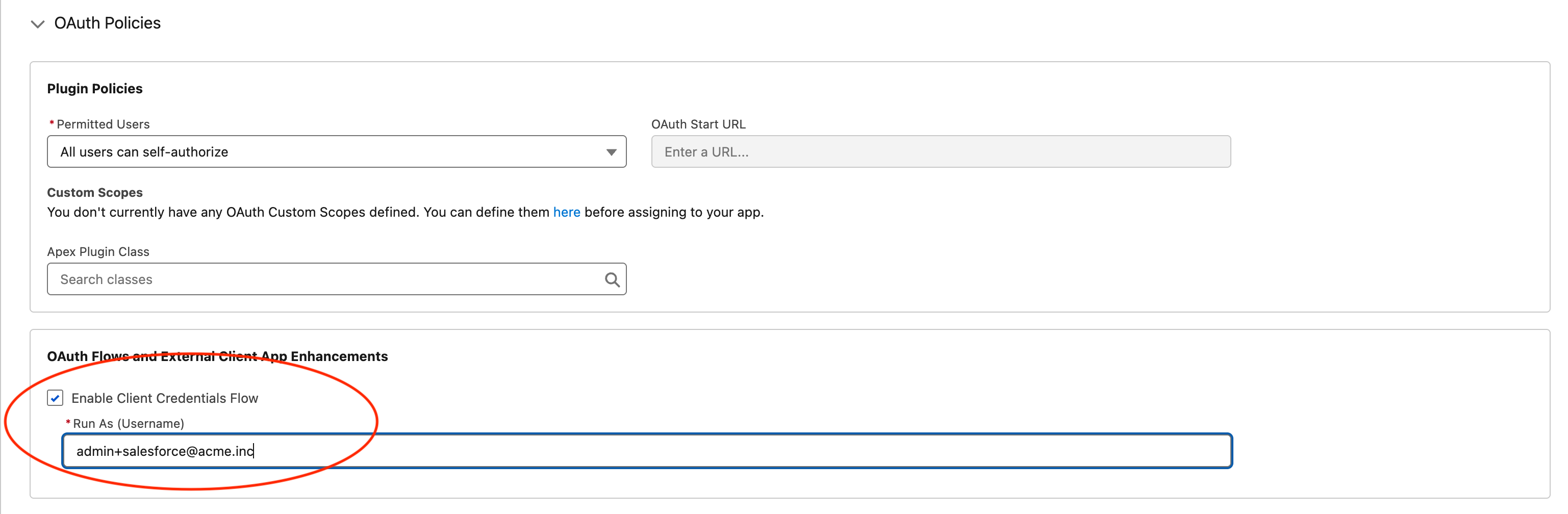
In External Client App Manager, open the app's Policies tab and edit its policies. Enable Client Credentials Flow, then choose the Run As username.
Copy the consumer credentials
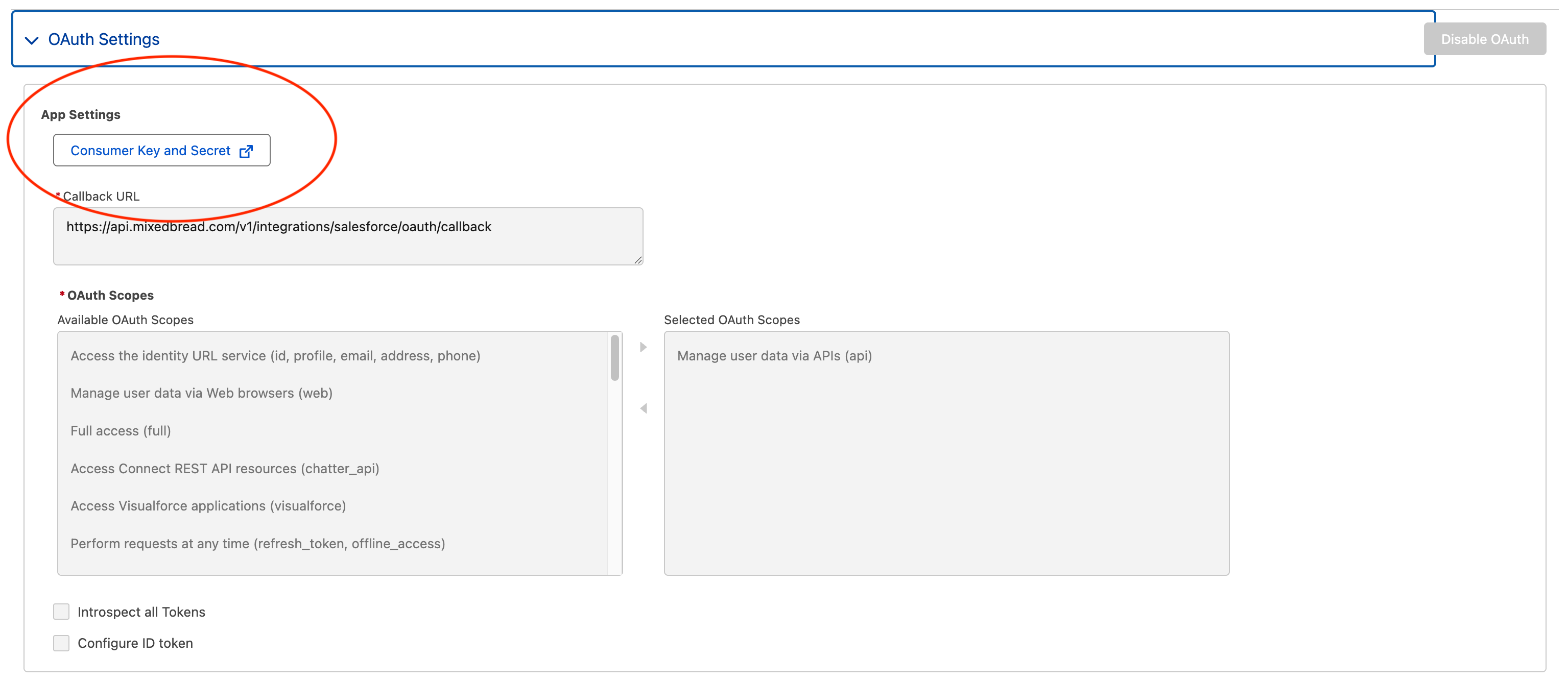
Open the app's Settings tab. Under OAuth Settings, select Consumer Key and Secret, then copy the Consumer Key and Consumer Secret.
Mixedbread can only access records available to the Salesforce Run As user. Use a dedicated user with the minimum permissions required for the selected object types.
Connect Salesforce
Choose Salesforce
In the Mixedbread Platform, open Data sources, select Create, and choose Salesforce.
Enter the consumer credentials
Paste the Consumer Key and Consumer Secret from the External Client App.
Enter the My Domain URL
Enter your organization's My Domain login URL, for example
https://yourcompany.my.salesforce.com.
Choose a sync schedule
Select Manual, Every 10 minutes, Hourly, Daily, or Weekly.
Choose the destination Store
Enter an optional Store name. Leave it blank to use salesforce-{your - org} .
Finish the connection
Select Connect Salesforce.
Select object types
Choose the Salesforce object types whose records should be imported.
Manage synchronization
Open the Salesforce data source to:
- search and filter available object types;
- synchronize or exclude object types;
- change the synchronization schedule;
- use Sync now to check selected object types for new, changed, and deleted records; or
- disconnect the Salesforce organization.
Turning off periodic synchronization leaves manual synchronization available. Excluding an object type or disconnecting Salesforce does not delete records already imported into the Store.
Troubleshooting
Authentication fails
Check the Consumer Key, Consumer Secret, and My Domain URL. Confirm that Client Credentials Flow is enabled both in the app settings and its policies.
No object types or records appear
Verify the Run As user and its object- and record-level permissions. Mixedbread cannot import data that user cannot access.
Changes are not appearing
Confirm that a periodic schedule is enabled or run Sync now. The manual sync checks selected object types for created, updated, and deleted records.