Notion Connector
Import shared Notion pages and databases into a Mixedbread Store using OAuth or an integration token.
The Notion connector imports pages and databases shared with Mixedbread into a Store. OAuth is the recommended setup because it provides Notion's page picker and a simpler authorization flow.
Before you begin
You need permission to add a connection to the Notion pages you want to import and a Mixedbread organization with access to Data sources.
Connect with OAuth
Choose Notion
In the Mixedbread Platform, open Data sources, select Create, and choose Notion.
Keep OAuth selected
Select OAuth (recommended).
Choose the destination Store
Enter an optional Store name and review the Store configuration. Leave the
name blank to use notion-{your - workspace}.
Authorize Notion
Select Connect Notion, choose the workspace, and use Notion's page picker to grant access to the pages and databases you want to import.
Finish the import
Return to Mixedbread. The connector imports the content shared through the page picker.
Use Manage access from the connector page to reopen Notion's page picker. Newly shared pages are imported, while pages removed from the connection stop appearing in future synchronization.
Connect with an integration token
Create a Notion integration
Open Notion integrations, create an integration of type Access token, and copy its access token.
Configure capabilities
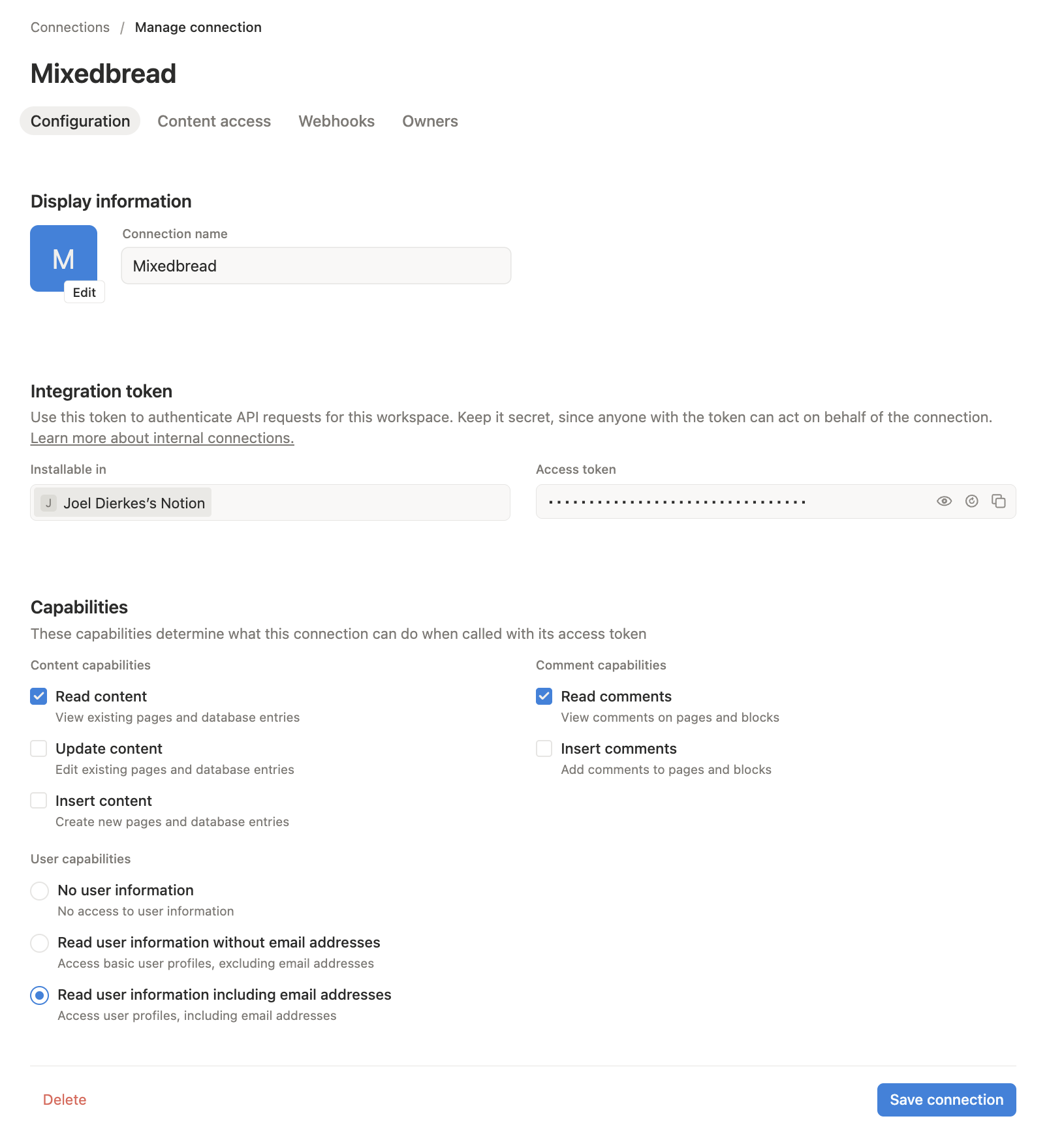
Under Capabilities, enable Read content and Read user information including email addresses. Read comments is optional.
Share content with the integration
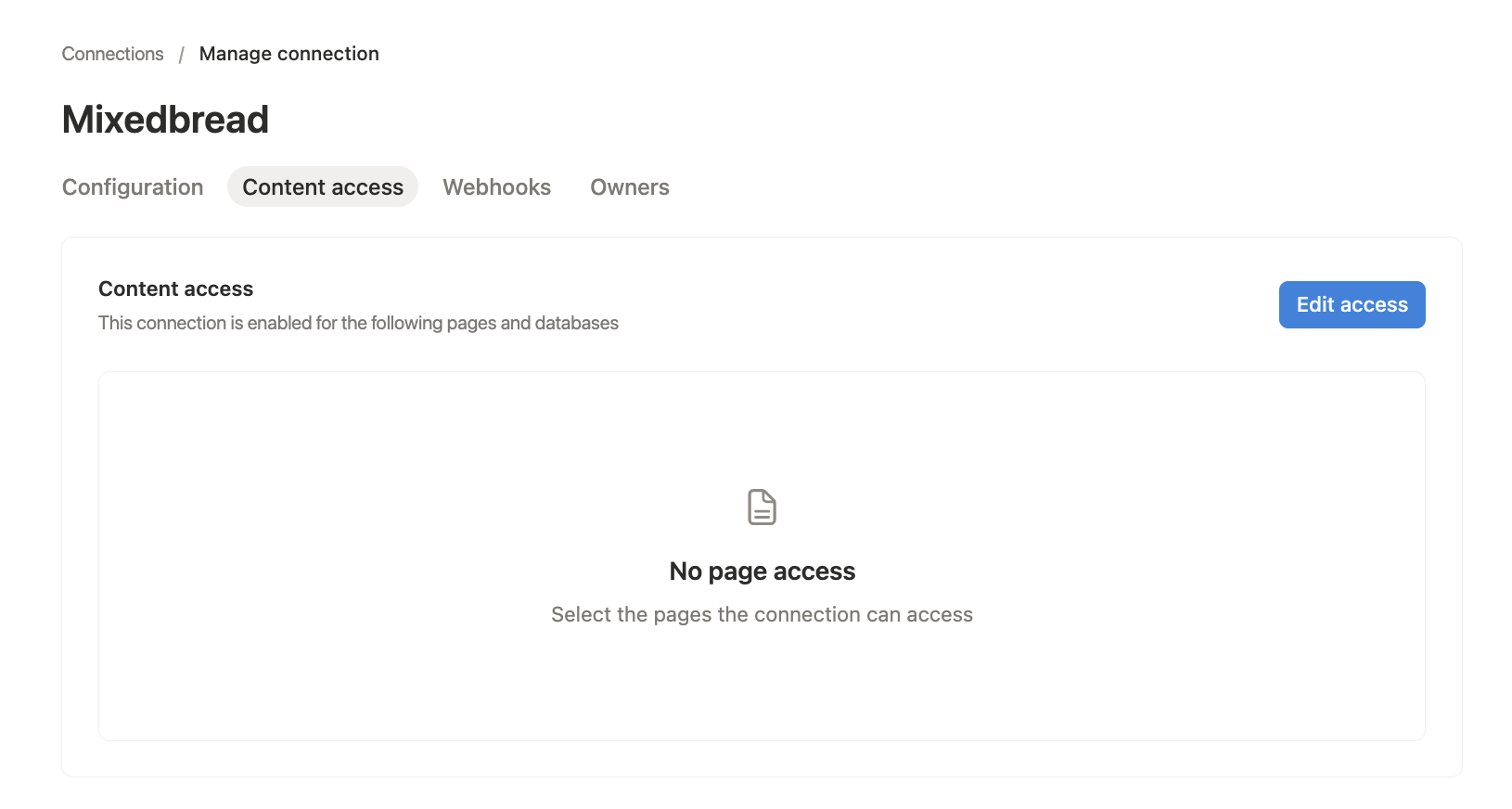
Open the connection's Content access tab, select Edit access, and choose the pages and databases to import. Mixedbread only imports content shared with the integration.
Enter the token
In Mixedbread, choose Notion → Integration token and paste the token,
which begins with ntn_.
Choose the destination Store
Enter an optional Store name, review the Store configuration, and select Connect Notion.
Enable real-time updates for token setup
After connecting with an integration token, open the Notion data source in Mixedbread. Copy its workspace-specific webhook URL and verification token, then add them on the integration's Webhooks tab in Notion.
The webhook values are only available after Mixedbread has connected the workspace.
Without the optional webhook, use the connector's manual synchronization action to import changes.
Manage the connector
Open the Notion data source to review imported resources, search them by name or path, monitor the latest import, manage OAuth page access, or disconnect the workspace.
Disconnecting stops Notion events and removes the saved credentials. Previously imported Store files remain available.
Troubleshooting
A page or database is missing
Confirm that it was shared through the OAuth page picker or the integration's Content access settings.
Token setup is not receiving updates
Verify the webhook URL and verification token in Notion. If no webhook is configured, run a manual synchronization after content changes.
The last import failed
Check that the connection still has access to all selected content, then retry the import.